Profile Management for on-premises
Audience
This document is intended for Citrix technical professionals, IT decision-makers, partners, and system integrators who want to understand profile management. The content provides insights on Citrix Profile Management in Citrix Virtual Apps and Desktops environment. The reader must have a basic understanding of the Citrix Virtual Apps and Desktops solution, group policy objects, and storage.
The objective of this document
This document covers the technical overview of multiple profile management solutions, including the Citrix Profile Management (CPM) service for Citrix Virtual Apps and Desktops. Also, it describes methods of configuring CPM and leading practices.
Introduction to User Profiles
A user profile is a standard representation of distinct user characteristics and personal preferences concerning end-user applications and operating systems. As the number of applications and computing devices increases, there is absolute demand and interest in the personalization of that particular space, and this necessitates methods of managing end-user profile information such that it can be updated frequently, accessed, and shared over networks.
In a non-persistent VDI space user connects to different machines every time, and it necessitates to have persistent data and settings in the environment. An administrator requires a profile management solution in an environment.
A user profile consists of personalized settings such as desktop background, network settings, and so on. Usually, profiles are stored in a folder named C:\Users. Also, these partitions contain a temporary section for web browser cache and Windows registry with HKEY CURRENT USER hive, and so on. Profile management has become necessary in the virtual desktop infrastructure world due to the demand for personalized applications, settings, computing, and communication devices. Creation, deletion, activation, deactivation, and update of a user profile are standard functions of any profile management solution.
In a virtualized world, end-users can get to their applications from any location or device. When users log in to their virtual desktops or launch virtual applications, they want to see everything just as they left, with their settings, shortcuts, toolbars, templates, desktop wallpapers, and favorites.
The most common challenges that influence the user experience and that administrators have to address when managing user profiles are:
- Profile bloat and logon speed – When profiles are bulky and contain more files, logons can slow down. An extensive profile can also impact storage performance.
- Last writer wins – When a user works on more than one virtual machine, their respective personal settings may be overwritten in a seemingly random manner during the log off.
- Profile corruption – Missing configurations or the inability to access personal settings, preventing the end-users from conducting their activities regularly.
- Microsoft 365:
- OneDrive for business is one of the M365 subscriptions allowing users to store, sync, and share their work files. In a non-persistent environment, every time a user signs-in to a desktop, OneDrive needs to sync all user data, which is time-consuming and bandwidth-intensive.
- Outlook in M365 frequently requires Cached Exchange Mode to avoid a delay in mail load, which means an OST file, which can grow quite large, must be stored. Separate, but related, the Outlook search index helps the user to find emails quickly. These files, by default, are stored locally on the system and need to be roamed with a user and stored in a highly performant location for optimal user experience.
- OneNote, similarly to Outlook, can have large storage requirements and is stored locally on the system by default. Roaming this with the user is critical to the performance of the application.
Profile Management Solutions
There are various profile management software solutions available in the market. Most of them have multi-layered capabilities to support cross-platform. The user profile is a crucial part of managing and delivering a virtual environment. Hence it is recommended to make an assessment of the environment and consider the best suitable profile management solution considering factors such as operating systems used, user personalization/customization requirements, document and file storage standards, application requirements, and Start Menu/Desktop customization requirements.
Multiple profile solutions available to meet these needs for Citrix customers are covered in this article, including:
- Microsoft Roaming Profile: Microsoft roaming profile is one of the oldest concepts that has become more popular from the Windows NT family of operating systems used to overcome problems with a standard user profile that is tied to a standalone machine by copying files to/from a central file share.
- Microsoft User Experience Virtualization: Microsoft UE-V works in conjunction with another profile management solution by managing settings specific to an application that cannot be handled efficiently otherwise.
- Microsoft FSLogix: a containerization-based solution acquired by Microsoft.
- Citrix Profile Management (CPM): CPM is a standard solution included with the Citrix Virtual Apps and Desktops product. Works similarly to Microsoft roaming profiles and is being expanded to support containerization.
- Citrix User Personalization Layer: although not strictly a profile management solution, users provisioned desktops with a UPL attached to capture all disk write activity will also have their profile stored here.
Microsoft Windows desktops and server operating systems come with different versions, builds, and patches. As such, it is common in an enterprise Citrix Virtual Apps and Desktops environment for a user to have multiple profiles and/or for multiple profile solutions to be in use to address different needs. These considerations are covered in the following sections.
Microsoft Roaming Profile
Microsoft roaming profiles are stored on a remote file share. During the logon to a machine, Windows copies the user profile from the network to the local computer. When the user logs off, Windows copies any updates made to profile data from the user machine to the network copy of the profile.
To enable the roaming profiles, the administrator can use the Active Directory Users and Computer tool on the domain controller. To set up a roaming profile, the admin must create a shared folder on a centralized server and configure the path to the share in the user account properties. The format as follows \\Servername\ProfileShareName\%Username% will create a folder and insert the profile for each user configured to use a roaming profile.
A variation on roaming profiles is Mandatory profiles, where a read-only copy of a baseline user profile is stored in a central location. When users logon, their profile is created based on this read-only template, and any changes they make are discarded on logoff, thereby enforcing a consistent user experience when personalization is not required. It can drastically reduce the storage requirements of a CVAD environment if the use case allows.
Folder Redirection
One of the drawbacks of roaming profiles is that after a while, profiles can grow in size as users store more and more data, commonly referred to as profile bloat. The logon and logoff period increase as the size grows. Folder redirection is used to improve the user-experience, and store specific profile shell folders (such as Desktop and Documents) in a file share outside of the user profile. It eliminates the need for the data that copied as a part of logon and logoff, thereby accelerating these processes.
Some of the user shell folders, such as Saved Games folder, can additionally be excluded. By excluding unwanted folders from the redirection, these folders would only exist on local machine, and in a non-persistent VDI environment, it would be deleted at logoff or reboot.
Use Cases for Microsoft Roaming Profiles
Microsoft roaming profiles are one of the most prolonged profile management solutions that come with every supported version of Windows. It is simple to configure, and many administrators are familiar with the solution. It is typically implemented as a low-cost option when no other profile management solution is available. The downsides to the solution around profile bloat and last writer wins are well-known. It is not suited for effective large file, which is becoming more common with Microsoft 365 and is typically handled with folder redirection.
Considerations for Microsoft Roaming Profiles
| Advantages | Considerations |
| Cost-effective | Profile bloat can be an issue |
| Easy to implement | Not recommended across low bandwidth |
| Settings are saved across multiple sessions | Susceptible to last writer wins and resultant settings loss where application silos exist |
| Connection to file server can be lost post-login with no impact to user experience | Storage performance goes down as profiles size increases and consumes more storage space |
Reference: Folder redirection and roaming profiles
Microsoft User Experience Virtualization (UE-V)
Starting with Windows 10 1607, User Experience Virtualization (UE-V) is included with Windows 10 Enterprise edition. Microsoft UE-V works in conjunction with other profile management solutions by capturing user-customized Windows and application settings and storing them on a central file share.
Microsoft UE-V is an agent-controlled product that stores specific application and Windows settings, such as wallpaper, in a central location. This location could be a Windows file share, OneDrive, or public cloud storage. Settings packages in the UE-V components stores application and Windows settings that created by UE-V agent. Settings packages are built, locally stored, and copied to the settings storage location. The sync provider determines when the application or Windows settings are read from the Settings packages.
Customers can use UE-V to synchronize settings for Windows applications as well as custom applications. XML files are used for settings location templates per application (although not needed for built-in Windows applications), and a UE-V template generator can be used for custom applications. For example, the UE-V templates include the required settings for Office 2013 and 2016 for synchronization of Office application settings between devices.
If UE-V co-exists with another profile management solution, for example, UE-V interacts with App-V applications where UE-V injects its agent DLL into the App-V process, applied any settings stored in the user settings storage path, then allows the application to launch normally.
It is recommended that the ‘AppData\Local\Microsoft\UEV’ folder be excluded from synchronization to avoid conflicts.
For detailed information about Microsoft UE-V, please review the following links:
- Microsoft User Experience Virtualization (UE-V) 2.x
- User Experience Virtualization (UE-V) for Windows 10 overview
Use Cases for Microsoft UE-V
The primary use case for UE-V is the management of application settings that are not captured or managed effectively by another profile management solution. As it can be challenging to scale for large numbers of custom applications, it is not as common as other profile management solutions.
Considerations for Microsoft UE-V
| Advantages | Considerations |
| Built-in configurations for typical Window applications, such as Office | Complexity increases as the number of applications increases |
| Easy recovery of application and Windows settings for a user | The administrator has to create a template for every program which has to roam |
| Faster logon times compared to Microsoft roaming profiles | Applications with bulky AppData will cause a delay in the launch |
| Older versions of Windows need to download MDOP and install UE-V agent | |
| Not a complete profile management solution |
FSLogix
The FSLogix solution places the entire user profile, both file system and registry, into a VHD container stored on a central storage system. FSLogix solutions include Profile Container, Office Container, App Masking, and Java Version Control.
Profile Container: It is a full remote profile solution for non-persistent desktop environments. It redirects the entire user profile to a remote location. Profile redirection is defined in the Profile Container configuration.
Office Container: It is a subset of Profile Container. Office Container enables and enhances the Microsoft Office experience in a non-persistent environment by redirecting the only area of the profile that is specific to Microsoft office.
FSLogix Profile Containers complement Citrix Virtual Apps and Desktops environments, in both private and public cloud deployments, by abstracting profile data from the underlying operating system drive and directing it into a Container stored in a central location. Stored as VHD/VHDX files, FSLogix Containers are mounted to the VDA during user logon. FSLogix mini-filter drivers intercept calls for profile data (registry and file system) and directs them into the Container. By default, FSLogix directs the entire user profile, excluding Temp and IE Cache locations within the user profile, into the Profile Container.
Microsoft Office data, such as Outlook OSTs and OneDrive cache locations, can either remain in the Profile Container or be further abstracted by enabling the FSLogix Office Container. In case the environment has an existing profile management solution, and the administrator wants to enhance Microsoft Office user experience, FSLogix Office Container can be installed along with third-party solutions.
FSLogix can reduce login times since profile data is immediately available upon the mount of the Container, without the need for copying files over the network, which traditional profile management solutions, including Citrix Profile Management, rely on, this means that items like profile bloat, which can plague traditional roaming profile solutions, do not have the same impact on logon times.
FSLogix Profile Containers face challenges when users open multiple sessions with the same base OS, requiring the same Profile Container to be mounted multiple times. Differencing disks are used in this scenario since the VHDX file cannot be written to from multiple locations simultaneously. Using the setting, Try for read-write profile and fall back to read-only, a base Profile container of type .VHDX is created and set as read-only. A second container, RW. VHDX is created as a differencing disk for write operations. When the user logs off, the base container and the RW container are merged.
A write lock to the FSLogix RW.VHDX container will occur in the first session the user logs into. In the second session, as in the case of launching a Citrix published application or a second desktop session, a RO.vhdx container is created to support the user profile for the second session. However, changes to profile settings do not persist between sessions and are discarded on logoff.
Please note: The FSLogix RO.vhdx container is created locally on the VDA, under C:\Windows\Temp, and compromises duplicated data from the profile container. This transaction can significantly impact time to logon. In the case of non-persistent desktops, this transaction will also impact the machine write-cache.
Citrix Profile Management, with the Enable multi-session write-back for FSLogix Profile Container feature, can write CPM profile data back to the central CPM share and de-couple profile data from FSLogix to persist for the next logon. Last write wins, however.
Consider the following scenario:
A user logs on to two separate desktop sessions with the same base operating system. CPM Multi-Session Write-back for FSLogix Profile is enabled. In the first desktop session, FSLogix mounts the Base and Read-Write Containers. In the 2nd desktop session, FSLogix mounts a read-only container.
Logoff Order A
- 1st session logoff first: CPM profile saved to FSLogix profile Container
- 2nd session logoff next: CPM profile saved to CPM share
Logoff Order B
- 2nd session logoff first: CPM profile saved to CPM share
- 1st session logoff next: CPM profile from 2nd session discarded from CPM share, CPM profile from 1st session is save to FSLogix profile container.
During Logoff Order A, the second desktop will not have a writeable FSLogix profile container. In order to persist changes, the CPM profile data is synchronized to the CPM share. On next logon, those changes are synchronized back to the FSLogix Profile container.
During Logoff Order B, the second desktop session changes are not required and are discarded on the first desktop session logoff.
The Enable multi-session write-back for FSLogix Profile feature requires at least Citrix Profile Management 1912 with the Citrix Profile Management 2003 Group Policy Template. This feature is disabled by default. Please follow the Enable multi-session write-back for FSLogix Profile container guidance to enable the feature.
FSLogix Profile Container documentation will help guide administrators on setting up the FSLogix profile solution as a starting point.
FSLogix Office Container documentation will help guide administrators through additional configuration to abstract Office cache data into a separate container.
Use Cases for FSLogix
Profile containerization solves many of the large file management challenges that negatively impact the user experience with roaming profile-style solutions that rely on network file copy. Large files are becoming more common with Microsoft 365, which is making FSLogix a more popular profile management solution since Microsoft acquired it, including it with any of the Microsoft license types documented here.
FSLogix can complement and co-exist with the Citrix Profile Management service. It is particularly important for organizations considering FSLogix that have an existing Citrix Profile Management deployment. Two common scenarios for this coexistence are:
- Citrix Profile Management + FSLogix Office Container
Office data can be abstracted from the profile using FSLogix Office containers as a standalone configuration without FSLogix Profile Containers. It is a simple addition to existing Citrix Profile Management deployment. FSLogix Office containers handle large file cache data for Microsoft Outlook, Microsoft OneNote, Microsoft OneDrive, and Microsoft Teams without having to configure complex, and potentially unsupported, redirection policies. Additionally, the Windows Search database can be included to enhance the user experience by providing quick search functionality.
- FSLogix Profile and Office Containers + Citrix Profile Management with FSLogix Multi-Session Write Back enabled. (Requires Citrix Profile Management 1912 and above)
Before Citrix Profile Management 1912, using both CPM and FSLogix to store profile data could be a balancing act as specific configurations must be implemented to allow CPM to synchronize data to the CPM share prior to the dismount of the FSLogix profile container. Beginning in CPM 1912, enabling the Enable multi-session write-back for the FSLogix Profile Container feature within Citrix Profile Management policies will allow CPM data to be synchronized into the FSLogix Profile container. On the first logon, the user will experience a logon delay as CPM data is synchronized into the Container. Subsequent logins will be faster as the CPM data is immediately available once the FSLogix Profile Container is mounted.
FSLogix can handle profiles efficiently including large profiles, and profiles that contains a lot of small files. Also enhances the user experience when using applications like Microsoft 365, gives better performance at the storage level. To conclude that FSLogix profile management solution is not a performance booster but administrator must validate the impact on the existing environment when using other than Microsoft 365 applications.
Considerations for FSLogix
| Advantages | Considerations |
| Improves user logon times with large files and folders | Administrative effort and skills to implement the Microsoft FSLogix solution |
| Citrix Profile Management (CPM) Multi-session write-back feature persists user data across multiple sessions | Multi-session read-write is not possible |
| Provides native Outlook OST and search index management | The customer must have a valid licensing model. Please review FSLogix Docs for licensing requirements. |
| Optimizes file IO between server and client | Ongoing connection to file share is critical |
Reference: Microsoft FSLogix
Citrix Profile Management
Citrix Profile Management (CPM) is intended as a profile solution for Citrix Virtual Apps and Desktops environments. Citrix Profile Management stores user profiles on a central file share. At login, users’ registry entries and files are copied or loaded from the user store, similar to Microsoft roaming profiles. Profile streaming, active write-back, and containers are further enhancements above and beyond what Microsoft roaming profiles provide, described in detail later in this article.
CPM is installed as part of the VDA software but is disabled by default. There are four ways to configure Citrix Profile Management in precedence order:
- Microsoft Active Directory Group Policy Management: Customers with auditing requirements and existing processes around tracking configurations and changes through GPO analysis often prefer to configure CPM through GPO, so the settings are centralized. It requires copying the ADMX/ADML files for CPM to the Active Directory central store so that the settings appear in Group Policies.
- Citrix Workspace Environment Management: Citrix Workspace Environment Management (WEM) supports configuring all settings for the current version of Citrix Profile Management. It can be advantageous if WEM is already being used to configure user environment settings (such as Start Menu customization) to help centralize policy control in a single console. For more information about configuring Citrix Profile Management through WEM, refer to Citrix document.
- Citrix Studio Policies: The Citrix Studio is the management console that enables administrators to configure and manage Citrix policies, including profile management policies. Customers whose Citrix administrative team does not have access to create and modify GPOs often prefer to configure CPM through Citrix Studio for ease of administration and control over the Citrix Virtual Apps and Desktops environment.
- UPMPolicyDefaults.ini file: Profile Management comes with a default configuration stored in an .ini file located in C:\Program Files\Citrix\User Profile Manager on every machine (VDA) where CPM is installed. The settings in the file only influence CPM behavior on that machine and therefore is often not practical in an enterprise production environment.
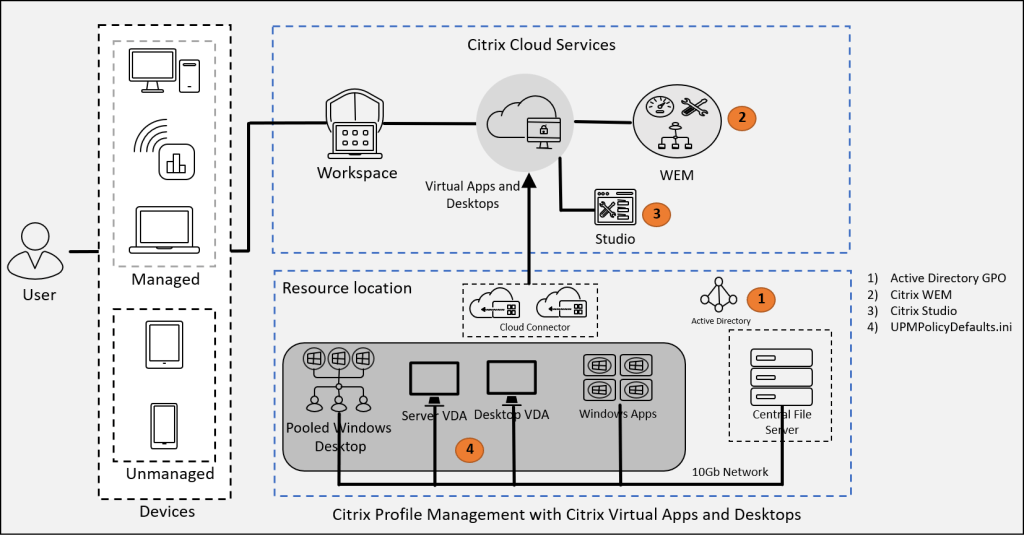
The preceding diagram depicts ways to configure Citrix Profile Management. It is recommended to configure the profile policy only from one place to reduce administrative overhead.
When using CPM to manage users’ profiles in a multi-platform environment, the administrator must define platform-specific folders to separate the profiles for each platform. Typically, admin does this using Profile Management variables in the Path to user store policy. For example, if using \\server\share\%USERNAME%\!CTX_OSNAME!!CTX_PROFILEVER! in the path, when User1 logs on to Windows 10 build version 1607, the profile folder will be \\server\share\User1\Win10RS1v6. In addition to separating user profiles by platform or operating system, it is also possible to leverage CPM or Environment Variables, to automatically distribute user profiles across multiple shares for enhanced scalability. Refer to Profile Management Variables for additional information.
Similarly to Microsoft managed profiles, CPM also comes with a read-only (Mandatory) type profile called “template profiles.” When configuring a template profile, a copy of a user profile is stored in a central location, and all users receive a profile based on this copy. Any in-session changes are discarded on logoff, such that the same user experience is provided for each session. This method minimizes storage requirements for the environment and eliminates many of the challenges associated with roaming profiles if the use case does not require personalization.
Other policies can be enforced under profile management, including file and directory systems (inclusion/exclusion lists), profile streaming, active write back, and Containers.
Folder Redirection, Inclusion, and Exclusion
Citrix Profile Management allows administrators to specify inclusion and exclusion lists at the file and directory level to help control at a more granular level what is and is not included in the user profile as an enhancement on folder redirection settings. For example, an application folder that contains settings critical to the user experience may also include logs that are not, which contribute to profile to bloat. In this case, including the application directory excluding the logs and the sub-folder helps to minimize the amount of data that is synchronized on logon and logoff.
Profile Streaming
The Profile Streaming policy can accelerate the login process by only fetching files from the user store when they are accessed by users instead of downloading the entire profile folder. If a file is not actually used, it is never copied to the local machine. This process speeds up the logon process even when profile sizes are large.
Active Write Back
Similarly, the Active Write Back feature adds value to log off when the profile is large, especially when there are many changed files. This feature copies back the modified files and folders (but not registry entries) to the user store periodically (about every 300 sec) during a user session, but before logoff. It reduces the number of files copied on logoff, thus reduces users’ logoff time.
Reference: Synchronise profile efficiently
Native Outlook Search Experience
Native Outlook Search Experience was introduced in Citrix Profile Management 7.18 to optimize Microsoft 365 Outlook performance.
Many organisations have adopted Microsoft Outlook 365. To get a better experience for the end-user, Outlook cached exchange mode is set in most of the Outlook environments, which caches the user’s mailbox and the Offline Address Book locally in an OST file. In this mode, Outlook no longer depends on continuous network connectivity for access to user information. When a user is connected to the internet, Outlook continuously updates users’ mailboxes, and the mailboxes are updates.
The Microsoft Outlook .OST file can be large in size. When a user logs into a new session, restoring the data can cause a logon delay or delay in opening Outlook. Also, Outlook emails are searched by the search index, roaming the search index database with the user profile is crucial in delivering a native Outlook search experience.
The Native Outlook Search Experience feature in Citrix Profile Management addresses these challenges by storing the Microsoft Outlook offline folder file (.ost) and the search database specific to a user in VHDX files:

The VHDX virtual disks are mounted dynamically during user login, with all the emails and search indexed objects, and unmounted on logoff. These settings are controlled via CPM policy.
For storing VHDX containers, an administrator can use an existing user store (file share). Also, make sure that these are the large files and need to be mounted during the logon process, so storage with good IOPS and minimum 10GB network bandwidth is recommended during the implementation.
Note: The Native Outlook Search Experience feature does not support concurrent sessions on multiple machines.
Reference: Enable native Outlook search experience
Profile Container
Large folders associated with a user profile result in a slow logon and impact on productivity. Profile Management introduced a VHDX-based profile solution, called Profile Container, which lets you specify the folders to be contained in the profile disk (VHDX files) in version 7.18. Profile Container attaches the profile disk containing user folders during login and eliminates the need to save a copy of the folders to the local profile. Profile Container solution reduces the logon times by mapping profile disk over the network.
The Profile Container feature can be used for large files or folders with a large amount of files in users’ profiles. The possible use cases include the Chrome Cache or anything similar where it may be beneficial to persist the data rather than just excluding it from CPM synchronization. File caching agents, such as Citrix Files, can also consider using Profile Container.
When a user deletes files and folders from the Profile disk, the size of the disk does not shrink automatically. To reduce the storage space, the Shrink Volume option needs to be used from disk management. The number of subfolders per folder that you can add as relative paths to the Profile Container list is limited to 31. This limitation is caused by the use of symbolic links for each folder. The maximum size permitted for the VHDX files is 50 GB. In case the administrator wants to delete the folder contained in the profile disk for a particular user, Citrix Director provides an option to reset the user profile.
The Profile Container does not support simultaneous access by multiple sessions and cannot contain the entire user profile.
To learn more about Profile Containers, refer to the link.
Considerations for Citrix Profile Management
| Advantages | Considerations |
| Included with Citrix Virtual Apps and Desktops | Advanced features require more considerable administrative effort and skill to manage effectively |
| Multiple methods to enable and configure (GPO, Citrix Policy, WEM) | Managing profiles across multiple operating systems can be challenging |
| Allows an administrator to more granularly manage what is contained in the user profile via inclusion and exclusion rules | Profile bloat can still be a challenge and impact user logon/logoff durations |
| Simplifies troubleshooting using detailed reports and logs | |
Use Cases for Citrix Profile Management
CPM is included with all versions of CVAD and is therefore commonly used as a substitute for Microsoft roaming profiles in CVAD environments. Because Citrix administrators would have full control over the profile management settings, and CPM contains enhancements on top of what is available by default with Microsoft roaming profiles that can solve some common challenges, such as profile bloat and last writer wins. New enhancements in Profile Containers can help with the management of large files (more familiar with Microsoft 365) that roaming profile-style solutions have traditionally struggled. As profile containerization is a relatively new feature, not all customers are able to take advantage of this technology and may consider other vendors that have supported this architecture for longer.
Citrix User Personalization Layer
Citrix User Personalization Layer (UPL) introduced in Citrix Virtual Apps and Desktops 1912. This feature helps to preserve locally installed applications across sessions. The UPL is designed to work with Machine Creation Services or Citrix Provisioning and must be used on non-persistent desktops that reboot after each use. Since UPL is designed to capture all write events, it can also store the user profile.
User Personalization Layers provide a more persistent experience for users while still supporting a shared desktop computing model. After a UPL is mounted, most system writes are redirected to the UPL. It allows support for the following:
- Each user profile and data settings are stored in the User Personalization Layer
- User installed applications are supported in the UPL as long as the applications conform to specific rules (see Rules below).
User Personalization Layers are assigned one to one. One user can have only one user writable layer per Master Image. The user can, therefore, only log on to one delivery group/pool with a desktop using the same UPL/Image combination with UPL enabled. This layer is created as a virtual disk on a file share when the user logs on for the first time.
During the logon process for a UPL enabled desktop, new search indexes are created for all entries in the Windows Search configuration. Search will become available when the indexing is complete, and search indexes will persist between sessions.
The User Personalization Layer is installed during the Citrix Virtual Delivery Agent installation on a Master image. The UPL is made up of a Windows mini-filter driver, system drivers, and services. The technology works by tying into the Windows logon. When a user logs on, the UPL share will be checked for the users UPL, and if found, the UPL will be mounted just prior to logon. If the VHD file does not exist, the UPL will be created in the defined UPL share and mounted. After it is mounted, almost all of the writes on the VDI desktops go into the UPL disk not just writes made by the user. This is what allows for a near persistent desktop experience.
The applications and data the user creates are stored on their own user layer virtual drive in a VHD file. When the user logs in to desktops, these user layer VHD files are mounted so that the end-user will have native user experience while accessing applications and data. This technology-based from Citrix App Layering and replaces the deprecated Personal vDisk solution.
One of the advantages of using Citrix UPL is that it does not require the full App Layering infrastructure. Citrix administrator does not have to refactor the gold image into App Layering to wield this feature. There are few requirements for this feature to work on Citrix environment that are detailed in the following sections.
Configuring the UPL Share and Layer Size
The path to the UPL will be defined by the path defined in a Citrix policy or the registry.
The relevant Citrix Policies are:
- User Layer Size in GiB
- User Layer Repository Path
The full path to the UPL will start with the Server and Share defined in the policy with Users\ %DOMAIN%_%USER% \ OSID_OSNAME added. Therefore, if the UPL share path is \\upl_server\upl_share
then the full path to the UPL will be:
\\upl_server\upl_share\Users\ %DOMAIN%_%USER% \OSID_OSNAME\username.vhd
It is also possible to change the UPL share path by editing the registry. The setting for that is:
HKEY_LOCAL_MACHINE\SOFTWARE\Unidesk\ULayer\RepositoryPath
DWORD_Value = \\upl_server\upl_share
The default size of the UPL is 10 GB. This size can be changed using a disk quota, Citrix policy, or in the registry using the following DWORD value:
HKEY_LOCAL_MACHINE\SOFTWARE\Unidesk\ULayer\DefaultUserLayerSizeInGb
In CVAD 2006, a feature was added to automatically expand the size of the UPL disk. In this version, the size of the disk will be checked every logon and increased automatically if necessary. The order of precedence for checking the size of the UPL is:
- Any disk quota set in the share
- The UPL size set from studio (HKLM\Software\Policies\Citrix\UserPersonalizationLayerConfig\UserLayerSizeInGB as a REG-DOWD)
- The Ulayer registry setting (HKLM\Software\Unidesk\Ulayer\DefaultUserLayerSizeInGb as a REG-DWORD)
- Ulayer.config setting (c:\Program Files\Unidesk\Layering Services\ulayer.exe.config
- Default Value (10 GB)
UPL was developed for customers that do not want to use the full Citrix App Layering but still need almost full persistence while maintaining a base IT-managed desktop image. For use cases that require persistence, the UPL may be the best choice. If providing persistence just for the Microsoft Outlook OST files and indexes is the main requirement, the UPL is not the best choice because it will be much larger than other solutions like FSLogix and the CPM Containers, which manage files and registry keys only in the Windows profile.
There are several requirements for this feature to work:
- Citrix Virtual Apps and Desktops 7 1909 or later
- VDA version 1912
- Windows 10 Enterprise x64, build 1607 or later
Rules
There are rules for what type of applications cannot be installed into the User Personalization Layer. The rules are mostly based on the fact that the UPL is mounted on logon and therefore is not present when the desktop boots.
Rules for applications that would not be supported are:
- Applications that install filter or kernel drivers which must be present during machine boot
- Applications that install 3rd party drivers that modify the Windows Driver Store
- Applications that other boot-time services are dependent on
- Applications that integrate with Windows licensing like Microsoft Office
- Applications that install hundreds of thousands of registry entries are not recommended to be installed into the UPL. This includes applications like Visual Studio and ArcGIS.
There are some other miscellaneous rules for UPL including:
- UPL does not work with persistent machine catalogs
- UPL does not work with Session Hosts though you can use it with Server 2016/2019 in single user mode.
- UPL does not work with Secure Boot enabled
- User Personalization Layers are tied to the image they are created with. Don’t try to move existing user layers to a new image.
- Currently each image must have a unique user layer share defined.
Reference: User Personalization Layer
Considerations for UPL
| Advantages | Considerations |
| Citrix UPL is easy to implement | Minimum CVAD version 1909 and VDA 1912, older version needs to be to use this feature |
| Can support use cases with pooled desktops that no other personalization technology. | 3rd party drivers like printer drivers, document scanners etc. do not work with UPL and must be added to the base image. |
| Supports both Citrix MCS and Citrix Provisioning | Storage consumption can be very high |
| Supports most user-installed applications | Applications must conform to rules |
| Replaces PvD and allows for support for Windows 10 desktops | Requires high performance highly available storage |
| As with other persistent technologies, replication for Disaster Recovery is difficult and expensive. |
Use Cases for UPL
In general, the UPL is the right choice for providing a nearly persistent desktop experience with the higher availability and manageability provided by non-persistent desktop models. It is, however, not a good fit for users that must install system-level drivers like security applications or Windows features like IIS. Customers interested in using UPL for developers should POC/test well to ensure that developers’ needs can be met by installing any applications that have drivers or other excluded types of applications in the base image. If the UPL does not work due to these limitations, consider a truly persistent statically assigned desktop for those use cases.
Profile Solution Summary
| Description | Microsoft Roaming | Microsoft UE-V | Microsoft FSLogix | CPM | User Personalization Layer |
| Implementation Effort | Low | Medium-High | Medium | Medium | Low |
| Supported versions | All | All | All | CVAD7 1909, VDA 1912 and later | |
| Licensing | Included with OS | Included with Win 10 1607 | Purchase from Microsoft | Included in CVAD | Included in CVAD |
| Agent required | No | No | Yes | Included in Citrix VDA | Included in Citrix VDA |
| Storage Requirement | Medium | Low | High | Medium | High |
| Storage IOPS | Medium (logon/logoff only) | Low | High (real-time) | Medium (logon/logoff only) | High (real-time) |
| Profile Size (Windows 10) | Medium | N/A | Large | Medium | Large |
| Multi-Session Support | Good (last writer wins issue) | N/A | Poor (read only) | Great | Poor |
| OST management | Poor | N/A | Great | Good – Native Outlook search experience (CVAD 7.18+) | Great |
| Search index management | Poor | N/A | Great | Good – Native Outlook search experience (CVAD 7.18+) | Great |
| Large file management | Poor | N/A | Great | Good – Profile Containers (CVAD 7.18+) | Great |
Infrastructure Considerations
The user store is a central location for user profiles. Any server message Block (SMB) or Common Internet File System (CIFS) file share can be used for the user store that supports NTFS permissions. The administrator makes sure that file share can be accessed by the accounts used with Citrix user profiles, high availability, and enough storage space to accommodate profile data.
All profile management solutions require separate repositories by platform or operating system to apply appropriate isolation of settings.
Latency and bandwidth
A user’s profile should always exist as close as possible to their desktop to minimize logon and logoff times. User profiles can place a considerable load on storage and network bandwidth. For containerization solutions such as FSLogix, UPL, and CPM, since data is mounted in real-time from a share, if that share becomes available, the user desktop could crash as user files and applications may be unavailable.
The user store can be located across multiple file servers, where many profiles must be shared across the network. As the number of profiles and users increased, bandwidth consumption over the network also increases. In a typical scenario, the file server resides along with management infrastructure components. As the resource consumption increases in the management infra cluster undeniably, the file servers are impacted on performance.
To overcome latency issues and handling more traffic in the production environment. It is recommended to have multiple file servers or leverage network-attached storage devices in the Citrix environment.
High Availability
One of the common scenarios that an organization has multiple data center locations and deployed multiple virtual desktops. To get optimum performance on the user experience and adhere to compliance, then a simple rule to be followed, i.e.,” keep users as close to their data and applications”.
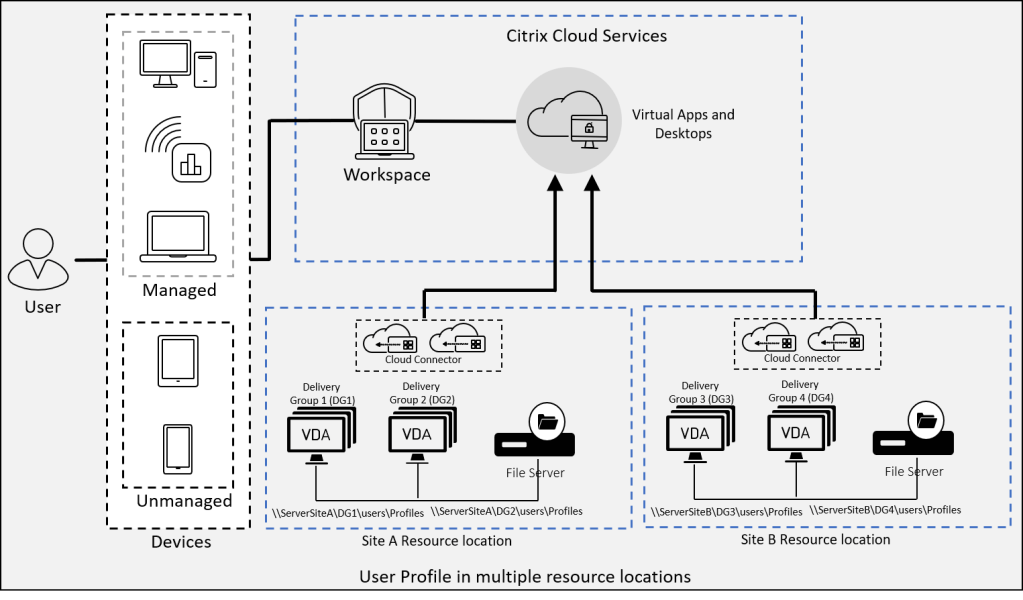
The preceding diagram show multiple datacentre locations (Site A and Site B) users are connecting to Citrix in particular Site A resource location will retrieve their roaming profiles from a file server in the Site A datacentre. Similarly, a user connecting to Citrix in a particular site B resource location will retrieve their roaming profiles from a file server in Site B data center.
Site A resource location and Site B resource locations have separate file servers. Respective site users profile data stored in the particular site file servers or user store. It is easy to implement and operate such an environment, and the profile data is restricted and only accessible from the particular Site.
In a large-scale environment, a single file server cannot handle. As the environment grows beyond certain limitations, then it becomes a little more complicated as a single file cluster or NAS device might not be enough to sustain with the load. As the number of file shares increases in the environment, assigning a unique path through the group policies may also become difficult. DFS Namespace solution can be implemented where each user gets a unique path and resolve multiple file server issues.
There is one more possible way to connect users to Citrix in multiple resource location scenarios, that is roaming profile must be transmitted across the MPLS. This option may turn down user experience because data has to be transmitted over the WAN. In such cases, the Active Write Back option does not perform well, and it is recommended to enable profile streaming policy.
Disaster Recovery and backup
The user roaming profile handled during any disaster condition. There are few solutions supports Profile Management service
- DFS namespace: Domain-based namespace servers are preferred in this scenario because they allow the DR site to have its namespace server.
- Multiple folder targets and DFS replication: For each networked user store, at least two targets are provided, and only one is enabled for regular operation. Enable one-way replication.
For more information on the basic setup of geographically adjacent user stores and failover clusters, refer to the following link.
Reference: High-availability disaster-recovery
Summary
The user profile design plays a vital role in the Citrix environment in terms of providing optimal user experience. Those methods are discussed in the preceding sections. As a solution architect, design user profile service with profile size and logon times in mind, proper tuning of profile policies can help to deliver an optimized profile solution.
 Home
Home 